Wednesday, February 1, 2012
AutoCAD – Color Change – WHY?
I can’t tell you why the background color of AutoCAD always changes with each release, but it does. You can change it back to black, or any color, very easily. Open your OPTIONS window (type in OP at the command line) and go to the DISPLAY tab.
Click on the COLORS button near the center on the left of the window. A new dialog box will come up. At the TOP on the LEFT, there will be a box called CONTEXT. Select the 2D MODEL SPACE option (it will highlight when you select it). Then, near the center of the window, on the INTERFACE ELEMENT, select the UNIFORM BACKGORUND option. Then, on the top right of the screen, there will be a COLOR option box. Click on the arrow to bring up a list of colors. Pick the one you want (I chose black).
That is how you switch your colors, for anything. Play with the options and see if you can come up with a color solution that works for you.
Happy CADDING.
Wednesday, April 23, 2008
AutoCAD 2009 – Color Change – WHY?
Click on the COLORS button near the center on the left of the window. A new dialog box will come up. At the TOP on the LEFT, there will be a box called Content. Select (it will highlight when you select it) the 2D MODEL SPACE option. Then near the center of the window, on the interface element OPTIONS, select the UNIFORM BACKGORUND option. Then, on the top right of the screen, there will be a COLOR option box. Click on the arrow to bring up a list of colors. Pick the one you want (I chose black).
That is how you switch your colors, for anything. Play with the options and see if you can come up with a better color solution.
Happy CADDINGTuesday, March 18, 2008
AutoCAD 2009 – Quick Properties

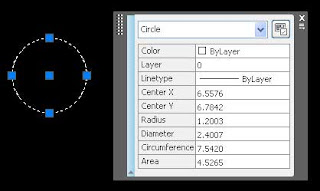
One of the new features in AutoCAD 2009 is the Quick Properties panel. It works just at it sounds. When you select an item the Quick Properties panel will open, displaying a small set of properties on that subject. I typically work with my properties window open at all times and pulled off to my second monitor. If you don’t have a second monitor then the quick properties panel might help you out.
In order to turn this feature on or off, just toggle it on/off in the status bar. If you right click the QP icon and click the settings option, the Drafting Settings window will open. Here you can change the display settings for the quick properties. If you want to change what information is shown, go into the CUI, under the Quick Properties area. There is a list of items that you can choose from, like; Arc, Circle, Hatch, Leader, Line, Mtext, etc. Pick one of these items and select the properties you want to show. If you need to know the layer, or the length of lines turn that on and everything else. It is up to you.
One of the settings that you can choose from is the location setting. You can set it to CURSOR, so that the panel will open where your cursor is. The other option is to set it to FLOATER, so that it will open in the same place all of the time. Just pick the one that suits you the best.
If you need all of the information then stick with the properties pallet. The quick properties panel is nice tool to use when quickly inspecting your drawing objects. Select the object and the panel opens. Unselect and the panel goes away. If this new feature annoys you, turn it off.
Happy CADDING!