Showing posts with label drafting. Show all posts

Monday, February 9, 2015

Four Steps to creating flawless drawings

There is more to making design documents (a fancy word for drawings) than just using CAD. CAD is the tool we use today to make our drawings, but it isn't the only part of drawing creation. That other part is the human doing the work. CAD helps of course, but the human tells CAD what to do. The problem with that is that humans make errors all of the time. CAD helps to reduce errors, or at least it can unless the human makes an error.

Here is a method you can use to help reduce the errors (not completely remove, that can't be done) you create in your drawings.

Tuesday, March 25, 2014

CAD Standards Should be Vague

It is fairly standard these days for a company to have a CAD Standard. The point to a company CAD Standard is to ensure production quality and to maintain an efficient work flow. It keeps all construction documents in line and makes certain that everyone can work with everyone else’s files. If your CAD Standard fails at any of these items then it is failing you.

One key aspect to help ensure a CAD Standard works properly is to keep many of its aspects vague.  Locking down criteria to something exact can stifle production and increase bloat. Definition and specifics are great but they can create bottlenecks in your production process. If your template CAD file has several thousand layers (as an example) but yet you find you never have the right layer, then there is an issue that needs to be resolved.

Monday, March 17, 2014

How to Re-size a Pipe Cross-section on an Exaggerated Scale Without Thinking

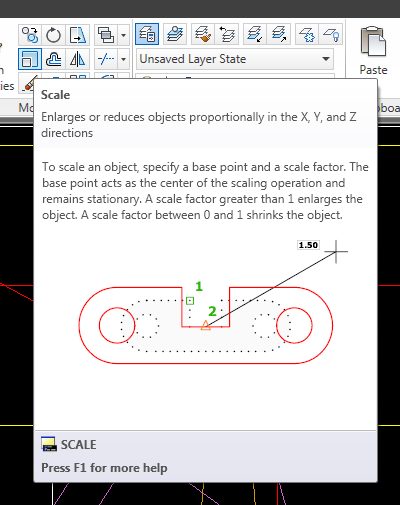
The Scale Command's Tool Tip
I had a profile view with an 18” diameter pipe drawn in cross-section that actually needed to be 24” in diameter.  I know you are thinking, just draw a new circle with a 24” diameter.  Sure, that’s what I would usually do.  In this case though our cross-section was a roadway profile and we draw those with an exaggerated Y-axis scale.  In this case the x-axis scale was at 1:40 and the y-axis was drawn at 1:4.  We do this to help visualize the changes in elevations along the y-axis.  It’s a common practice in civil engineering plan and profile roadway designs.  These types of cross-sectioned pipes are typically drawn with an ellipse.  I could have taken the time to do the math and determine who wide and tall to draw my ellipse.  I also had a pipe drawn in at 18” that was properly scaled in across both axis.  I copied it and used the scale command.  What scale did I use?  24/18.   That’s not a scale.  Sure it is and it enabled me to get this job done in seconds.  Let me explain.

I had a pipe drawn at 18” in diameter.  It was already an ellipse so it was scaled properly in both the x and y axis.  I just needed it to be a 24” diameter pipe.  In order to show an 18” diameter pipe in a 40 scale drawing at a scale factor of 4 we have to draw a 15’ diameter pipe about the y-axis that is also 18” wide across the x-axis.  This makes for a tall and skinny ellipse.  A 24” pipe would be drawn at 20’ tall.  That is because we scale the y-axis “up” to put it at a different scale in the drawing view.  This math can make your head hurt so do the easy thing.

Thursday, March 13, 2014

Access the Last Point Used in AutoCAD With One Keystroke

There are many instances when we draw in AutoCAD where we might want to draw to the last coordinate point we used.  This is how it works.  Draw a line from point A to point B and end the command.  Start the circle command.  For the center point type @ on the command line.  This will draw the circle’s center point at the last point we drew at which is point B on our line.  See the video clip below.


You can use the “@” symbol in any case that requires a coordinate input.  If you want to draw concentric circles draw the first circle.  Draw the second but use the “@” symbol for the center point.  It will select the center of the first circle drawn.

In my post, “How to Break a Line Like a Pro” I showed you how to use the “F” or first option in the break command to break an object at a specific point.  In Tip Number 2, I have you select the exact same point to break an object in one place.   Alexandre Serdakowski, a reader of this site and a Head Draftsman, reminded me of the last point feature of the “@” symbol and that the break command would be a great use case.  Start the break command, select the object, type F, pick your point, then for the second point type in @.  It’s much easier than selecting the same point again.
Also keep in mind that if there is no last point in a drawing yet then using the @ symbol will draw your object point at the origin (0,0).

Thursday, April 19, 2012

1 if for RED, 0 if Bylayer, ANY if Byblock

Blocks are one of the selling points to using CAD over the drafting board.  In reality, blocks are not really unique to CAD, from a certain point of view.  Board drafters used templates and guides as a sort of block to create basic shapes and redundant linework.  Blocks are sets of linework, text, or any CAD object that are saved and stored to be reused later on.  They can take on many different forms, shapes and functions.  They make drawing in CAD quicker.  We use computers, and CAD, to make redundant tasks easier.  Why do something several times when you can do it once?  That’s what a block does.

Wednesday, February 1, 2012

AutoCAD – Color Change – WHY?


I can’t tell you why the background color of AutoCAD always changes with each release, but it does. You can change it back to black, or any color, very easily. Open your OPTIONS window (type in OP at the command line) and go to the DISPLAY tab.

Click on the COLORS button near the center on the left of the window. A new dialog box will come up. At the TOP on the LEFT, there will be a box called CONTEXT. Select the 2D MODEL SPACE option (it will highlight when you select it). Then, near the center of the window, on the INTERFACE ELEMENT, select the UNIFORM BACKGORUND option. Then, on the top right of the screen, there will be a COLOR option box. Click on the arrow to bring up a list of colors. Pick the one you want (I chose black).

That is how you switch your colors, for anything. Play with the options and see if you can come up with a color solution that works for you.
Happy CADDING.

Monday, September 13, 2010

Getting the best drafting jobs - Guest Post

Are you looking for a job in the drafting field?  This article is a Guest Post from Edwin Chan (check out his website Design Establishment.) and he gives some good advice when looking for CAD or drafting work.

Getting the Best Drafting Jobs


As a designer, engineer or drafter, there are many different drafting jobs that you can do. Whether it is something you want to do full time or even something on the side for a bit of extra cash, there are many options out there to choose from. This article will look at how you can go about making yourself stand out from the other job candidates when on the job hunt.

Building Your Skill Set

Take a look at your resume and see what skills you already have that you can build on. For example, if you are a guru on AutoCAD, then picking up a similar program such as Double CAD XT or GStarICAD won’t take long and will fill out your resume more. This holds true for many different drafting and 3D modeling programs. Spending a little extra time learning these programs is a quick and easy way to build your resume up.

The Job Hunt –Get Networking

Once you’ve got a solid resume, it is time to do the searching. There are many different avenues that you can choose. The most powerful way and often the most overlooked would be getting a job through networking. A lot of people love to hire people through recommendation or through association.
Get in contact with the big players in your industry. Build networks and find mentors. Although many of these people are super busy, you will find a majority that would love to help you out. Staying in contact with people and building the relationships over time will greatly increase the chance of you getting referred to a job or being next in line when a job opening does open up. A well networked person usually never runs out of work to do.

Be Flexible

Often being able to draft well in one industry means you can use the skills you already have to jump into another. When looking for the right CAD drafting job, don’t only look for jobs within your industry. For example, if you are good at architectural drafting, then there is nothing stopping you from jumping into marine drafting or drafting schematics. Think about where you can apply your current skills into other industries. This will open up a wider pool of jobs that you can choose from.

Finding the top cad drafting jobs doesn’t have to be hard. Get connected, be flexible and find creative ways to boost your resume. This will greatly improve your chances of getting the best job for your needs.

Friday, January 30, 2009

No Cost CAD - Project Draw

AutoCAD can be very expensive. AutoCAD LT is still on the expensive side, especially if you don't need all of that power. What can you do if all you need is to create simple sketches? They are 3D models, so Google's free version of Sketchup is priced right, but it's not what you want or need. Autodesk has an online product available called PROJECT DRAW.

Project Draw provides a vector based 2D drawing platform that runs through your web browser. There is no software to purchase, no updates, no patches to maintain, etc. If you have a web browser and internet access you can use it!

Project Draw has the ability to draw basic shapes, many of them predefined. You can also draw lines, add fills, etc.

Basic Shapes

There is a fairly large basic shape library containing predefined shapes for you to use. The categories include:
  • Basic Shapes (Square, circle, triangle, cross, round rectangles, and more
  • Flow Chart
  • Callouts
  • Network (computers and geeky stuff)
  • Windows/Mac UI (interesting applications here)
  • Floor/Office/Kitchen & Bath Layout (related furniture shapes and equipment)
  • Furniture (beds, lamps, tables, sink, & furniture)
  • Electronics (electrical symbols, wiring, etc)
As you can see, with these shapes, users can quickly create a basic layout to give to a contractor, engineer, architect, or permit coordinator to convey your needs and wants without having to spend thousands of dollars and years of training for a complex design program. I drew this character in about one minute using different shapes and fills.

Ok I won't win any awards for this, but perhaps in the hands of a creative artist something great could be drawn.

In the case you want to draw something a little less abstract, you do have dimension controls when drawing a shape. In the screen shot below, I started on the FLOOR LAYOUT basic shapes and inserted a square room shape. You are asked to insert the dimensions for the the sides, or you can drag the edges of the shapes like grip editing in AutoCAD until the sides are at the length you want them to be.
You also have control of what type of units you are using in the drawing as well as the page size. You have two choices, imperial (inches) or metric (millimeters). If you draw a shape in inches but now want to switch to millimeters, go ahead. Project Draw automatically knows the difference. A five inch object will automatically convert to 127 millimeters, for example. I mentioned earlier that there are different sheet sizes to choose from. When working in imperial units, you can choose from ANSI or ARCH A, B, and C sizes. They also have legal, 8"x10" and 30"x 42". If you don't like those settings, enter in your own, like 24"x36". The metric units have ISO A2, A3, A4, and A5. But again, you can still enter in your own size in millimeters.

Properties Window

Many of the features mentioned above are accessible from the Properties Window. When an object is selected, the properties for that object will be displayed. Here you can change its size, rotation, and insertion point. These same variables can be changed directly on the shape through grip edits. But this feature allows you to accurately draw your shapes to the size you want to. They are just randomly drawn lines that you guess is the right size.

The properties window controls the drawings units, paper size, grid controls (on/off and size), snap to grid, scale of drawing, ruler on/off, and guidelines. One issue with the scale of the drawing. Make sure you set it first before you start drawing otherwise it seems that the drawing objects will also scale!

Project Draw is a very versatile, free, and simple program to use for basic sketches and design documents. It has many possible applications in many different genres.

Here is a list of features as provided from the website for Project Draw:

  • Project Freewheel integration - include your designs from AutoCAD, Inventor, Revit, or any other DWF in your diagrams and use them like any other shape
  • Predefined shapes - drag and drop our vector shapes to create custom diagrams.
  • Save your diagram in editable formats.
  • Export your diagrams in a variety of formats, including DWF, DWFx, PDF, JPG, PNG, and SVG.
  • Cross-browser compatible - create a diagram in IE, open it in Firefox, or vice-versa.
  • Handles - drag the shape handle to stretch dimensions.
  • Linear, curved, and orthogonal connectors available.
  • Imperial and metric page sizes available.
  • Text tools, gradients, shadows, zoom, dimensions, snap-to-grid, and more - we’re adding new features all the time based on your feedback.
  • Dynamic images - embed images into web pages based on your diagrams. Update the diagrams and the images automatically update.
I recommend that you check it out. You may find that it would be a useful tool for many people.

Happy CADDING!!

Wednesday, December 3, 2008

Entering Angles in Surveyor's Angles

Many times in AutoCAD, users will enter an angle in Degrees. Maybe even in Degree/Minutes/Seconds. If you are a surveyor or are working with a survey drawing, you will see angles (or bearings) written something like this:

N45d20'6"E (where d is the degree symbol)

This means the angle is North 45 degrees, 20 minutes, 6 seconds, East.

Users can input angles just like this if we need to. When drawing a line, pick your first point, then type in:

Make sure to start with the '@' symbol. Then enter the distance, (here it is 200) then the less than sign (I would type it in but my blog thinks I am trying to type in an HTML tag!!) then N (for north or S for South) the angle number (45) d to let AutoCAD know it is the degree, then the minutes and seconds if any. Don't forget to type in the symbols ' for minutes and " for seconds. Finish up with your last direction e (E for east and W for west.)

This will draw a line 200 units long at 45d20'6" to the "right" (or east) of north (straight up)

It's that simple.

Happy CADDING

Thursday, October 23, 2008

Drafting/CAD Tools - What do you use to help?

Many of us started off as board drafters. I sort of did. 85% to 90% of my work has been done in CAD over a 15 year period. My first job was taking board drawings and redrawing them into CAD. One of my other jobs involved revising board drawings. Many of them were on linen!! I've used bond, vellum, sepia, mylar, and linen. Mostly bond and mylar. Over the years I took advantage of many different tools to help me draw.

On the board I used scum bags (one of my favorite), planemeters (did I spell that right), lettering guides, templates, and electric erasers (another favorite of mine). As a CAD Drafter I have used many tools to help me do my job. I used some of them in board drafting too, like a scale for example. When I first started CAD Drafting I was using AutoCAD release 10 in DOS! I think the workstation was a 386 processor with a math co-processor, 75 megahertz, 2 Gig hard drive, 15" CRT monitor, DUAL 5.25" flopy drive, SCSI Zip drive (high tech back up system), and a tablet with a 16 button puck (12 button number pad-like a phone, and 4 buttons at top.)

Back then we had a pen plotter. That was fun to watch. It took about an hour per D size plot, but it was fun to watch. It was always amazing to see the rack move back and forth, grab a pen from the carosel, move the paper (or mylar or vellum) and draw, one line at a time, pick the pen up, put it down, etc. I don't think there was a ryme of reason to the way it processed the drawing because it would often draw part of a line, switch pens, then go back to that pen a draw the rest of the old line. Why didn't it just draw every line,text, and object with that pen that it needed to before it switched pens?

In Release 10 we didn't have paper space yet, can you imagine???!!! No paper space? We had to scale everything, text, dimensions, borders, title blocks, what ever. I found a tool that helped me. The CAD Card. I still have it. In fact, I got a new one a few years ago. Honestly, I think I like the older one better. The CAD Card still lives by the way. They have even produced a metric version, and a mini version too!!

The CAD Card is a slider card that users can, well, use to help them find settings for text, scales, borders, and more for their cad drawings. It's a great tool that I am going to be talking about more. Keep your eyes open.

In the mean time, what types of tools do you use to help you draw? I still use machineries handbook as a refernce tool. How about you? Let me know.

Monday, October 13, 2008

Drafting Standards

When was the last time you or your company talked about Drafting Standards? Most discussions involving standards these days deal with CAD Standards. There is a difference, with some overlap of course.

Good "Old Fashioned" drafting standards are vital to proper CAD use. What units are you drawing in? What text size are you using? Spacing, line weight, line type, notes, details, etc. These are all drafting standards. And don't forget arrowheads, or ticks, or dots, or whatever you use.

What do you use? Ticks, dots, arrowheads? What font do you use? Text size? Or any other particular drafting style? And what is your discipline? (Architecture, Mechanical, Piping, Civil, Survey, Electrical, Manufacturing, etc.)

Thursday, July 10, 2008

Bye Bye Land Desktop - Hello Civil3D!!

How many of you work in a Civil (or AEC) related field? How many of you use Land Desktop? How many of you have moved to Civil3D? How many of you are trying to move to C3D but can't seem to get 'er done? Autodesk has officially announced the long expected demise of Land Desktop. What now?

Don't worry, your license of ALD (Autodesk Land Desktop) is still good and will work just fine. BUT (there's always a but), what if you come to a time when you have to update your software? You won't be able to. If you are on subscription with ALD, then maybe you need to review your contract. I'm not sure how Autodesk will handle that. Keep in mind that your subscription contract does indicate that there is no guarantee of a new release! If you just signed a three year subscription for Land Desktop, then, well, hmmmm.

What if you are in a situation where you don't use ALD but have set up an elaborate customization of routines, menus, tablets, blocks etc. to do your design and drafting work? This means that you need to start looking at Civil3D because your competition will be. Autodesk has reported several times that many Civil3D users see around a 33% (plus or minus of course) reduction in design drafting time. That means Civil3D companies can under bid you by 50%!! Can you compete with that? Where did I get 50%?

Lets say that it take $100 to do a job. If I use Civil3D, then I can do the job for 33% less. That means it will cost me $66 to do the job. $100 minus $66 is $34. $34 is about half (or 50%) of $66. If I do the job for $100 and my competition does it for $66, then I am making a bid on a job that is 50% higher than my competition !! I think that we would loose clients and eventually shut down. The other alternative is to reduce costs by 30%. How do you do that?

My point, even if you don't use Land Desktop, this will affect you.

Wednesday, July 9, 2008

Why the Ribon is Bad and Good

There has been a lot of discussion with regards to Autodesk's changes to AutoCAD's interface. There have been many complaints about the ribbon and that it is considered inefficient by many of its users. I feel that the claims of inefficiency are valid when compared to using toolbars and somewhat agree to its comparison to pulldown menus. The issue here is that it takes more clicks to get to the command needed. You can’t disagree with that because it’s true, just count the clicks and mouse movements to get to a command.

I am not saying the ribbon is garbage; I only want to point out the fact that if you are a user that works with toolbars and menus, then you will have efficiency issues.
I propose that toolbars and menus are still less efficient to use then keyboard input. Admittedly I am an old DOS based AutoCAD user and learned to use cad with keyboard entries, a tablet, and the menu screen. Perhaps that makes my opinion a biased one.

If a user can type with the left hand and work the mouse with the right then this, in my opinion, is the most efficient use of time. This work process means a user doesn’t have to move the mouse back and forth across the screen increasing the time it takes to work. It is much quicker to use the keyboard and mouse simultaneously. I call this method “Two-Handed CADing.” “One-Handed CADing” would have the user ignoring the keyboard as much as possible while moving the mouse over the entire screen. This method also takes up more screen real estate. Because more buttons (menus, toolbars, etc.) are needed. If the toolbars and menus change, then the user can not work as efficiently until the new interface is learned.

Two-Handed CADers use keyboard shortcuts. What if they change? Then they can easily open the old alias file, copy and paste the customizations into the new one. They do not have to learn anything unless it is for a new command. Much easier than relearning a program they already knew.

This is where I feel the Ribbon fist best, with Two-Handed practices. Even though TH (Two-Handed) users key in commands, several often use toolbars, palettes, or menus every once in a while. I know that I do. Sections of the Ribbon can be pulled out (like toolbars) and placed anywhere on the screen, while the rest of the Ribbon is collapsed, docked, hidden, or left alone. This has the potential of using even less screen real estate.

For these two reasons I like the Ribbon. It fits well with my Two-Handed style of CAD use.
Do you like it or hate it? Why?

Tuesday, June 3, 2008

Review-CADsmart-Good for Managers?

I want to talk to you again about CADsmart. I have posted about it a couple of times now (here and here) giving you some information about the software. We first spoke about what it does, generally speaking. Then we took a look at the assessments and how they work. Now I want to look at CADsmart from the manager’s aspect. What can we do with the information we just collected?

CADsmart really excels in the larger firms and for assessing interviewees. It doesn’t perform as well with small firms that have four or five CAD techs. If you are managing only five CAD users, then you already know where they struggle and where they excel. But if you have twenty, fifty, a hundred, or more, then you don’t have the time to know them as well. That’s where CADsmart can help. I also like it when assessing interviewees. It provides a fair environment for the tester, which gives you a more accurate assessment. Many firms have customized their CAD environment and that can intimidate and overwhelm a candidate if they are trying to get a job by taking a test in a place they are unfamiliar with. Sometimes upper management doesn’t understand these types of situations. CADsmart is a fairer assessment process.

Now that we have assessment data on our CAD users, how do we get to it and what do we do with it? Access is easy enough. Go to CADsmart’s website and log in. You will need an account to be able to do this. We will talk about getting an account later on. When you log on there are several options available to you. You can go directly to the performance charts, or go to the assessment results.

The performance charts provide a quick visual guide to the information collected. You can see your scores sorted by group (employee, interviewee, etc.) The charts provide you with a performance spread in one graph and a stage performance in a second graph. This gives you an overall look and a more detailed comparison. There are different color codes to help you differentiate between the groups and the benchmark. Hopefully the benchmark is the lowest set of scores you have! Everything here is online, but you can get the data and print it, transfer it to a PDF, or export it to a spreadsheet. There are many ways to see the data and to get it to use for yourself.

The assessment results tab is where you can go to get more detailed information about the individual test results. You can sort the data by any column and in any order. You can sort it and then resort it by clicking on the headers. You can add and sort your users results by groups. The default groups are Employees and Interviewees. In my test I added groups for our departments; engineering and surveying. This is a nice feature if you need to manage the results from different offices or departments.

The assessment results tab lists each user by name. If you click on the users surname it will open up a window that provides the basic testing data (time, date, CAD platform) and recommendations for training based on the assessment results. If you click on the result score, another window opens up providing a more detailed analysis of each stage. It provides the end score, the time taken, and an analysis. The analysis lets you know what the candidate did incorrectly! This is a great feature because it can better explain to you why they scored the way they did. How useful is an assessment that just says, “You scored an 85%.”? Not very. At the end of the assessment results it compares the score and time with the benchmark letting you know how your skills compare. When you are finished, you can click the print button to print out the certificate (that’s what they call the data sheet.) I was disappointed that CADsmart didn’t provide other output devices as in the Performance Chart Tab like the PDF and Spreadsheet options. That’s how you look at and use the assessment data. It’s very simple to use.

There are other tabs too that you would expect; account details (name, address, password, etc.), resources (this is where you download the assessment software and instruction guides), software settings (turn off testing options like the clock, intro movie, welcome message, and extra candidate labels), booking system (where you can schedule assessment times), support (where to go if you need help), and logout (that one’s obvious!)

You can see that with CADsmart, managers have many tools available to them to better assess the CAD skills of their users. There are many resources to go to for help (like the managers’ video) and more instruction. CADsmart also has some customization features that might help you out too. Overall I feel that CADsmart is a good program and a great service. It is easily used and implemented.

The biggest question is; how much does it cost? CADsmart has two methods, the Premier and the Classic. The premier provides unlimited use and with all the assessment data, recommendations, the whole thing. The Classic level of subscription only provides unlimited use of the Assessment Software and access to your data. This might be enough for some managers. It will depend on you, your needs and your budget.

The pricing varies from the classic to the premier and by the number of users. It seems to me that they are looking for a general usage amount. The website states that you can assess your users as many times as you want including as many interviewees as you have.

The price difference on 1 to 15 users from the classic to the premier was only about $300 (U.S.), ranging from about $1500 to about $1800 per annum. The price on 100 users ranged from about $6300 to about $7500 per annum. You will need to check for yourself as prices may change. They also provide pricing for other countries. The more users you add the higher the price.

Depending on the amount of employees you have, the price will obviously vary. If you have about 100 users, then the cost will be about the same as one license of your CAD software! I think that is a good price and well worth the money spent. I feel that CADsmart is a good investment in your company.

Tuesday, May 27, 2008

Review - CADsmart 2 of 3

A few days ago I gave you a brief overview of a software program I found called CADsmart. It is a program that you can download and run within AutoCAD (or Microstation) in order to assess your users’ general CAD skills. It doesn’t test programming skills, nor is it release specific, it only looks at general CAD drafting skills. Knowing what areas your users excel in along with the areas they don’t is very useful. It allows you to train them properly and where they need it.

Last time I gave an overview of what CADsmart can do, generally speaking. Now I want to get more specific.

Before you get started using it and before your users test with it, I recommend that everyone involved watches their online videos which let everyone know what to expect and how it works. This is a nice touch. It helps to relieve some of the stress that people have when they are being assessed, especially if they are taking it as part of a job interview or as a personnel review as an employee. People get nervous and they might not perform as well as they normally do when under pressure, so this feature helps.

Another feature that helps the scores be more accurate is that CADsmart runs within AutoCAD (or Microstation). It would be nice if you didn’t have to have AutoCAD to take the review, but this method does have a nice bonus to it. Since the user (if he/she is a current employee) is taking the assessment in a CAD setting that they are familiar with, they will perform better. They perform better because they are being tested in the same environment that they work in everyday. CADsmart also gives the user the ability to arrange the toolbars, pallets, icons, etc. to their liking before the exercise begins. This also helps interviewees test better in a new and different setting. Everyone involved gets better and more accurate scores.

Ten exercises are taken, each one covering different aspects. These ten topics are: Lines, Sheet Set Up/Xrefs, Circles & Arcs, Text, Blocks/Cells, Dimensions, Layers/Levels, Preferences, UCS/ACS. As you can see, these topics cover the general skills needed to be able to work with CAD software. It also breaks them up enough so that we can see what areas we do well in and in what areas need more training.

In order to take the assessment, the CADsmart software must be downloaded and installed on the testing machine. Once it is installed, log on and begin. If the candidate hasn’t watched the introduction movie yet, they will get the option during the set up phase. Some information about the user will have to be filled out in a form. This helps CADsmart identify who you are. They provide a guarantee that says they won’t give out that information to any third party; only CADsmart, you and your company will have access to that data. Once the form is filled out they can begin the assessment.

Each exercise will provide instructions and a preview of what is to be done. It is up to the candidate to figure out what to do and then do it. Be careful when reading the instructions, just as the video says, because if you don’t follow the instructions and do as you are told, your score will be lower than it could be! Once done, the candidate will receive an e-mail where they can go and find out their score. They will also receive an assessment comparing their score to the benchmark as well as recommendations on what areas to improve. This is one of the reasons they had to fill out all of that personal information, so that CADsmart would know who they are.

CADsmart is a simple to use program that provides valuable CAD skill assessment data and comparison. It is easy for users to test with and easy to set up. It is run in a CAD environment that is familiar to the candidate thus giving more accurate scores and skill assessments.

I’m going to stop again so that our minds won’t melt. In the near future I plan on taking a closer look as to what CADsmart offers the manager. We will look at the tools it provides in skill assessment, charts, data management, the benchmark, how to access the data, etc. We’ll also take a look at what managers can do with the information they just collected.

Happy CADDING

Tuesday, May 20, 2008

Review - CADsmart

CAD-a-Blog is about teaching CAD skills, especially AutoCAD skills. With that in mind, I try to keep my eyes open for products or services that can help users (and me too!) better themselves. I feel that I have found such a product.

Consider this scenario; imagine that you need to hire a new CAD user for your company. How do you know if that user can in fact use CAD? How do you know the extent of his or her skills?

Also consider this; how can you measure the CAD skills of your current users?

Well I have come across a product that comes from the United Kingdom. It is from CADsmart.
CADsmart is a company that provides testing software that measures general AutoCAD (and Microstation) skills in users. It has the ability to measure CAD drafting skills, not programming, not customizations, but CAD skills. In a nutshell, the user takes a series of drafting based assessments, each one covering a specific topic. The results are compared to a benchmark that has been developed by CADsmart from thousands of users that have taken the same or similar assessments. The user is scored individually and in comparison to other users. For example, one segments score could state that you scored an 80%. That means that you were 80% correct. Now compare that score to the benchmark and you will have a means to measure your abilities relative to the thousands of users that have already taken the assessment. This software gives you a score for the user and tells you if it is a good score or not.

CADsmart’s benchmark is meant to represent the average user. If you score above that, then you should be a good CAD user. If you score below the benchmark, then there might be some areas for training. The assessments are scored separately on overall accuracy and time taken. These two measurements can be compared to the benchmark or to other employees in your company.

CADsmart’s assessments cover specific topics. Each one consists of a series of steps that the user must complete. It doesn’t matter how the user gets the work done, or how long it takes, only that the end results are what they need to be. This is one of the main reasons that I like this software because every user will work in a slightly different way and what matters is the final drawing, not so much as how it was drawn. I said that time doesn’t matter, well it doesn’t affect the accuracy score, but it is measured and compared to the benchmark. So keep it in mind that you need to be both accurate and quick, just like in real life!

Each category has its own benchmark that you can compare your score with. This is very useful because it provides a means of determining where your specific problems are. This feature is great for managers too because it enables them to find specific problem areas in their users so that they can concentrate their training programs exactly where they are needed. Time and resources are not wasted training the wrong people in the wrong skill sets.

CADsmart is not perfect. It is not cost productive for a single user to buy the software and use it on themselves, though this can be done. It works best in a group environment. You also have to have AutoCAD software on your machine in order to run it. One other thing that I understand, but didn’t like too much, is that while taking the test, I can’t pause it in case my attention is needed elsewhere (That happened to me while I was taking the test. I got a low score in the dimension portion because of it-maybe I’m just bitter!) Playing devil’s advocate, if I could pause the assessment, then I could stop it, figure out the task, then start again. That’s cheating, so I understand the reason behind it, but I want it anyway!!

That’s the gist of it. I don’t want to overload you with information, so I am going to write about CADsmart in smaller bite size parts like this. Check out their website, read about them, and let me know what you think. Later I’m going to get more into the workings of it, what it has to offer managers in terms of assessment tools, charts, and recommendations. CADsmart will test the user, show the assessment data, and provide recommendations on what areas to train the specific users in. It is a very helpful tool in my opinion.

Happy CADDING!

Friday, May 9, 2008

Workaround – Drawing Arcs To Length

A CAD-a-Blog reader sent me this e-mail asking how to draw an arc to a particular length. Here is Saqib’s question:

If we have a curve or arc, we know its length and radius. If we want to divide or mark some points on given length so what is way of it. One way to do this use "DIVIDE" command then enter how many parts you need. But what I want is that we don’t need exact parts like 10,20,23,50 etc. How can I divide arc into desire length like 12.33,44.77,20.83 like so on.

These tow methods are how I do it. If anyone has a different method of doing this please e-mail me or comment to this post.

Method one:

Use the ARC, Center, Start, Length command. You can find it in the DRAW, ARC pulldown menu. Or start the ARC command, select the CENTER option (type in C at the prompt-then press enter), select the arc’s center point, then select your starting point, and finally type in the desired length. You have just drawn an arc of a known center point and radius to a specific length. Keep in mind that AutoCAD defaults the direction of an arc as going counter clockwise. That means that when you select your starting point that the arc will be drawn from that point and extend out in a clockwise manner. If I start at the top of the arc, then it will be drawn to the left of that point. If I start at the bottom of a circle, then my arc will start at the bottom and go to the right.

Method Two:

Use the lengthen command to change the length of an arc. Start the LENGTHEN command (type in LENGTHEN). Choose the TOTAL option (type in T). Now you have the choice to change the arc to a certain angle (or delta) or to a certain length. Type in the length desired and select the arc (you can select multiple arcs if you want to). Make sure that you know which end is your starting point. In this case, the starting point will be the first end point drawn.

I hope this helps. Happy CADDING.

Tuesday, May 6, 2008

Multi Leaders

In AutoCAD 2008, Autodesk gave us Multi Leaders. These are annotations that can have more than one leader coming from it. They can do more that that too. You can combine multileaders, you can align them, and you can use blocks in them as callouts.

You can start the command by typing in MLEADER. Or, in AutoCAD 2008 go to the Multileader toolbar, and click the mleader icon. OR, go to the DIMENSION pull down menu, and then click the Multileader button. In AutoCAD 2009 you can do the same as above, or in the Ribbon, go to the HOME tab, in the ANNOTATION Panel click the Mleader icon. OR in the ribbon, go to the ANNOTATION tab and then go to the Multileader Panel. Quick tip, don’t type in ML (I know, it seems logical) because that is the shortcut for Multi-Lines. Instead, type in MLD to create a new multileader. Here are some other out of the box keyboard shortcuts for multileaders:

MLA, *MLEADERALIGN

MLC, *MLEADERCOLLECT

MLD, *MLEADER

MLE, *MLEADEREDIT

MLS, *MLEADERSTYLE

Now that we know where to go to start the command, let’s start the command. You will quickly find the multileaders work and act in a very similar fashion to leaders. You pick the point where you want your arrow head to point to (get the point yet?) and then you pick the point where you want your landing (the landing is the horizontal tail that comes from the end of the leader and stops just short of the text.) Then enter your text. Easy enough.

Now, if you want to add a second leader to this callout, then click the ADD LEADER button. Then follow the prompts. Select the multileader you want to add to. A new leader is drawn and follows your crosshairs around until you designate where you want your new leader’s arrow head to point to. It will keep doing this until you hit the ENTER key. So you can add more than one leader to your multileader at a time. It can be fun. Go crazy, get a little wild, and add tons of leaders. Ok stop, that’s too many!!

How do you remove a leader? Good question. Go to your toolbar, pulldown, ribbon panel, whatever, and click the, any guesses, REMOVE Leader button. Select the multileader you want to edit, and then select the leader you want to remove. You can keep doing this until there are no leaders left to select. If you select them all, then the multileader will be deleted, oops!! When you select the ones you want to remove, they will be highlighted. Press enter to remove them. There you go.

Now that you have multileaders in your drawing, you need to edit them, move them, and adjust them. Go ahead. Use the grip edits to do this. You can move the arrow head around just like any other leader. Look at the image provided. I have selected the multileader. See the grips that are available? The grip at the top of the text will allow you to move just the text, while the arrow head stays in place, just like regular leaders that are associated. The grip at the end of the landing, just before the text, will stretch the landing and move the text, keeping the distance from the landing to the text the same. The grip where the leader and landing meet will stretch the leader and the landing while leaving the text and the arrow head in place. Cool huh? The grip in the middle of the landing will move it and the text around leaving the arrowhead in place.

To edit the text, just double-click it and it works just like mtext. If you change the text justification, the multileader landing will stay relative to the rest of the text. If you want to change the landing position to the text, select the multileader, open the properties palette, and change the left/right attachment setting. You can set it to line up at the top, middle, bottom, etc.

There is a lot more you can do with multileaders, but that will have to come in a different post. These abilities are what really set multileaders apart from leaders. You can align them, combine them, and use blocks, standard and custom, for your callouts. We will look at those later.

Happy CADDING.

Monday, May 5, 2008

Quick Tip – Clean Screen

The Clean Screen command in AutoCAD will provide a fuller view of your screen, making it easier to work with. It turns everything “off” on your screen except for the status bar, menu bar, and the command line. Invoking the Clean Screen command again restores your screen

Click the Clean Screen button in the lower right hand corner of the screen (it looks like a box) to toggle it on and off. OR, press “CTRL+O” (that’s the letter “O” not the number zero).

Happy CADDING

Wednesday, April 23, 2008

AutoCAD 2009 – Color Change – WHY?

I can’t tell you why the background color of AutoCAD 2009 was changed to white, but it is. You can change it back to black, or any color, very easily. Open your OPTIONS window (type in OP at the command line) and go to the DISPLAY tab.

Click on the COLORS button near the center on the left of the window. A new dialog box will come up. At the TOP on the LEFT, there will be a box called Content. Select (it will highlight when you select it) the 2D MODEL SPACE option. Then near the center of the window, on the interface element OPTIONS, select the UNIFORM BACKGORUND option. Then, on the top right of the screen, there will be a COLOR option box. Click on the arrow to bring up a list of colors. Pick the one you want (I chose black).

That is how you switch your colors, for anything. Play with the options and see if you can come up with a better color solution.

Happy CADDING

Categories

AutoDesk (110) autocad (109) AutoCAD 2009 (40) augi (40) efficient (38) news (37) drafting (33) training (33) articles (30) CADaBlog (29) AutoCAD WS (23) Update (23) quick tip (22) video (21) mobile (19) review (19) cad (16) 3D Mouse (15) 3Dconnexion (15) Impression (15) Android (14) AutoCAD 2013 (14) cadalyst (14) me (14) AutoCAD 2010 (13) text (13) off topic (12) survey (12) Apps (11) hotfix (11) tips (11) 3D (10) AU (10) AutoCAD 2011 (10) service pack (10) workstation (10) Autodesk Labs (9) CAD Manager (9) annotation (9) blocks (9) cloud (9) fun (9) inventor (9) HP (8) Review-Product (8) autocad lt (8) videos (8) AutoCAD 2014 (7) Autodesk 360 (7) CUI (7) Windows 8 (7) iOS (7) new (7) IMSI Design (6) cad standards (6) files (6) google (6) infinite skills (6) printers (6) reference (6) ribbon (6) support (6) updates (6) workaround (6) RSS (5) TurboViewer (5) Upgrade (5) data (5) email (5) fields (5) guest post (5) keyboard (5) layers (5) paper space (5) pi (5) pi day (5) quotes (5) rant (5) selection (5) standards (5) styles (5) subscription (5) tech (5) 2D (4) AutoCAD Exchange (4) AutoCAD for Mac (4) Mac (4) Mastering AutoCAD (4) SketchBook (4) TurboCAD (4) UI (4) action recorder (4) dimension (4) driver (4) fills (4) large format printing (4) leaders (4) math (4) mobile workstation (4) salary (4) sheet sets (4) Amazon (3) Apple (3) AutoCAD 2012 (3) AutoCAD 2015 (3) AutoCAD 360 (3) AutoCAD Fundamentals (3) Civil 3D (3) DVD (3) DWF (3) Fusion (3) GIS (3) Kindle Fire (3) Lenovo (3) Microsoft (3) Review-Software (3) Wiley (3) Windows Phone 8 (3) Windows RT (3) annimation (3) announcements (3) autodesk plm (3) book (3) command alias (3) contest (3) filters (3) find (3) hardware (3) history (3) iPad (3) license (3) license software (3) lisp (3) menu browser (3) properties (3) purge (3) quick view (3) saas (3) tables (3) toolbars (3) weekend rant (3) what not to CAD (3) what not to do (3) #CADaBlogDVD2013 (2) 3D Modeling (2) 3ds Max (2) AutoCAD LT 2013 (2) AutoCAD LT for Mac (2) AutoCAD MAC (2) Autodesk. (2) BIM (2) CAD Services (2) CADSpeed (2) DWG (2) DXF (2) Designjet (2) Error (2) FAIL (2) Facecast (2) Freestyle (2) Fusion for Mac (2) George Omura (2) Mac OS (2) Mountain Lion (2) Novedge (2) Recomend (2) Review-Book (2) Revit LT (2) SpaceMouse Pro (2) Sybex (2) Tablet (2) Thinkstation (2) TurboReview (2) TurboViewer X (2) What Not To Do In AutoCAD (2) What's New (2) Windows (2) array (2) as-builts (2) beta (2) blog (2) circles (2) civil (2) civil design (2) collaboration (2) color (2) command line (2) commands (2) computer (2) copy (2) design (2) design review (2) dim style (2) download (2) eBook (2) eTransmit (2) file naming (2) free (2) geek stuff (2) grid (2) hotnews (2) interview (2) jobs (2) knowledge base (2) limits (2) look back (2) mouse (2) pallets (2) pgp (2) plotting (2) posts (2) press release (2) pricing (2) purchase (2) redlines (2) reference files (2) rental plans (2) shortcuts (2) sketchup (2) status bar (2) technology preview (2) tool pallet (2) tooltips (2) tv (2) units (2) video editing (2) viewer (2) webinar (2) 123D (1) 123D Catch (1) 123D Create (1) 123D Make (1) 2014 (1) 2015 (1) 3d Printing (1) ACAD/Medre.A (1) ADR (1) AEC (1) AUGI World (1) Account (1) Adobe (1) Apps Tab (1) AutoCAD 2016 (1) AutoCAD Error (1) AutoCAD LT 2012 (1) AutoCAD LT 2014 (1) AutoCAD LT 2015 (1) AutoCAD Mechanical (1) AutoCAD Revit Suite (1) Autodesk Account (1) Autodesk BIM 360 (1) Autodesk Instant (1) Autodesk PLM 360 (1) Autodesk ReCap (1) Award (1) CADDork (1) CADO (1) CTB (1) CadMouse (1) Camtasia (1) Communication Center (1) Corel (1) DWFx (1) Dassault Systemes (1) Death Star (1) Dell (1) Design Feed (1) Design Suites (1) DesignCAD (1) DoubleCAD (1) Duratec (1) E32 (1) ESET (1) ESRI (1) EliteBook (1) Epson (1) Evernote (1) Exchange Apps (1) FTP (1) ForceEffect (1) Free Form (1) Fusion 360 (1) GIS Day (1) GeoViewer (1) Geographic Information Systems (1) Geographic Location (1) Google Chromebook Pixel (1) Google Earth (1) Google Earth Pro (1) HP Designjet T2300 eMFP (1) HP EliteBook (1) HP EliteBook 8570w (1) HP Z1 (1) Help (1) Homestyler (1) IT (1) Infocenter (1) Inforbix (1) InfraWorks (1) InfraWorks 360 Pro (1) Infrastructure Modeler (1) Instant (1) Inventor 2013 (1) Inventor 2013 SP1 (1) Inventor LT (1) JPEG 2000 (1) Kickstarter (1) Kindle (1) Language packs (1) Lawsuit (1) Lenovo Thinkstation E32 (1) LizardTech (1) MS Exchange (1) Map 3D (1) Maya (1) MrSID (1) OS (1) OS X (1) Office Suite (1) Orange Juice Studios (1) P-Series (1) PLM (1) Photoshop (1) Pixel (1) Pixlr (1) Pixlr Express (1) Pixlr-o-matic (1) Plant (1) PogoPlug (1) Point Cloud (1) Previous (1) Project Artoo (1) Project Geppetto (1) Project Snap (1) R&D (1) Red Dot Award (1) Review-Service (1) Revit (1) Revit LT 2013 (1) Rhino (1) SDK (1) SMS (1) Secureload (1) Socialcam (1) Softimage (1) Solid Edge (1) SolidWorks (1) SpaceMouse Wireless (1) SpaceNavigator (1) Star Wars (1) SureColor (1) T-Series (1) TechSmith (1) The Future (1) Thinkstation E32 (1) Touch Screen (1) Trimble (1) TurboSite (1) TurboSite Reader (1) TurboViewer Pro (1) Unreconciled Layers (1) VBA (1) VOIP (1) Vault (1) Vault 2012 (1) Vela Systems (1) Visualization (1) WebOS (1) Welcome Screen (1) Windows Vista (1) Windows XP (1) Z1 (1) acad.doc (1) acad.lsp (1) acaddoc.lsp (1) acquisition (1) advice (1) aerial (1) all-in-one (1) angles (1) archive (1) arcs (1) author (1) autocad 2012. autocad lt 2012 (1) autocad. autocad for mac (1) autodesk logo (1) background (1) break (1) burrito (1) business (1) celebrate (1) check (1) checklist (1) chrome (1) chrome os (1) chromebook (1) climate (1) coming soon (1) communicate (1) constraints (1) construction (1) copier (1) crowd funding (1) customize (1) deadlines (1) design process (1) designer (1) desktop subscription (1) different language (1) draftsight (1) eMFP (1) ePrint (1) employee (1) employer (1) engineer (1) environment (1) event (1) feeds (1) file sharing (1) filepath (1) fix it (1) folders (1) font (1) government fail (1) groups (1) guide (1) hatching (1) imagery (1) initial setup (1) input (1) install (1) intel (1) internet (1) investment (1) isometrics (1) labels (1) layer manager (1) linetype (1) livestream (1) logo (1) macro (1) malware (1) message (1) mice (1) model space (1) modeling (1) multi leaders (1) navigation (1) newsletter (1) notifications (1) offset (1) opinion (1) options (1) overrides status bar (1) parametrics (1) patches (1) pay-as-you-go (1) perpetual license (1) podcast (1) poll (1) polyline (1) prank (1) printer failure (1) printers color (1) project draw (1) project files (1) project workflow (1) questions (1) recommend (1) release (1) remove (1) rent (1) repair (1) resume (1) reverse line direction (1) right click (1) save (1) scale (1) scanner (1) screen capture (1) sea turtles (1) send files (1) settings (1) snap (1) software (1) solutions (1) sony (1) student (1) subscription center (1) sustainability (1) system variables (1) tabs (1) tech snob (1) transparency (1) trial (1) undo (1) uninstall (1) viewports (1) virus (1) webcast (1) wiki (1) workplace (1)